Two SQL Server Tools I Always Use for Troubleshooting and Performance Analysis

When troubleshooting Microsoft SQL Server environments—especially under pressure—having the right tools can make all the difference. Over time, I’ve found myself consistently relying on two lightweight but incredibly powerful tools that provide insight into what’s happening right now and help build historical context for analysis.

In this post, I’ll walk through the two tools I use the most:

  • sp_WhoIsActive (by Adam Machanic)
  • Extended logging setup using sp_WhoIsActive (inspired by Thomas S. Williams)

sp_WhoIsActive – Real-time insight into SQL Server

👉 http://whoisactive.com/

If you’re working with SQL Server and not using sp_WhoIsActive, you’re making life harder than it needs to be.

This stored procedure gives you a real-time snapshot of what’s happening inside your SQL Server instance:

  • Currently running queries
  • Wait types
  • Blocking chains
  • CPU and memory usage
  • Query execution plans

Example usage:

EXEC sp_WhoIsActive;

But where it really shines is when you start adding parameters:

EXEC sp_WhoIsActive
@get_plans = 1,
@get_blocking_info = 1,
@get_outer_command = 1;

Building History with sp_WhoIsActive Logging

This gives you a much deeper understanding of what’s going on—especially useful when dealing with blocking or long-running queries.

👉 https://thomasswilliams.github.io/sqlserver/2020/12/02/spwhoisactive.html

Real-time data is great—but when troubleshooting intermittent issues, you need history.

That’s where logging sp_WhoIsActive output becomes extremely valuable.

Using the approach described by Thomas S. Williams, you can:

  • Store snapshots of activity in a table
  • Schedule it via SQL Server Agent
  • Build a historical dataset for analysis

This allows you to answer questions like:

  • What happened last night at 02:00?
  • Which queries were causing blocking?
  • Was there unusual CPU or IO activity?

Example setup:

EXEC sp_WhoIsActive
@get_plans = 1,
@destination_table = 'dbo.WhoIsActiveLog';

Once you log data regularly (e.g. every minute), you essentially create your own lightweight monitoring system.


🧠 Why I use these tools

These two tools together give me:

  • 🔎 Real-time visibility when something is wrong
  • 📊 Historical insight when investigating past incidents
  • Fast troubleshooting without needing heavy monitoring tools

They’re simple, flexible, and incredibly effective.

💡 Final thoughts

You don’t always need expensive monitoring solutions to troubleshoot SQL Server effectively.

With sp_WhoIsActive and a simple logging setup, you can get:

  • Deep insight into query behavior
  • Visibility into blocking and waits
  • A historical baseline for performance

If you’re not already using these tools—I highly recommend adding them to your toolbox.


👉 I regularly use setups like this when troubleshooting large queries and performance issues across environments.

How to Use ChatGPT Responsibly for College Research

Why the AI Shortcut Is a Double‑Edged Sword

Every freshman’s first instinct is to toss a research prompt into ChatGPT and hope for a ready‑made essay. The lure is obvious: speed, convenience, that glossy veneer of “smart.” But the hidden cost? A flood of unchecked facts, a phantom of originality, and the ever‑looming specter of academic misconduct. Look: the problem isn’t the tool; it’s how you wield it.

Know Your Source—Even When It’s an Algorithm

ChatGPT draws from a massive corpus, not a curated bibliography. It can hallucinate citations, blend dates, and invent authors faster than you can Google “peer‑reviewed.” And here is why you must verify every claim. Treat the model as a brainstorming partner, not a primary source. Cross‑check with JSTOR, Google Scholar, or your university’s library portal before you let any sentence cross the threshold of your paper.

Step 1: Frame the Question Like a Pro

Instead of “Write about climate change,” ask, “What are the three most cited studies on Arctic sea‑ice melt since 2018, and how do they differ in methodology?” The narrower the prompt, the sharper the output. You’ll get a list of real papers, not a vague paragraph full of fluff.

Step 2: Extract, Don’t Insert

Copy the model’s summary, then hunt down each source yourself. Replace the AI‑generated paragraph with your own synthesis. This way you retain the speed boost of pattern recognition while preserving academic integrity. It’s like using a power drill to mark a hole, then sanding the edges yourself.

Step 3: Cite the Engine, Not the Content

When you do quote a generated insight, attribute it to “ChatGPT (OpenAI, 2023)”. But remember: most professors won’t count that as a legit reference. The real credit goes to the original authors you uncovered. It’s a safety net, not a shortcut.

Guard Against the Echo Chamber

ChatGPT mirrors the biases baked into its training data. If you feed it only “popular” viewpoints, you’ll get a homogenized narrative. Counter that by feeding contradictory sources, pulling in gray literature, and deliberately seeking out minority perspectives. Your paper will breathe, not just echo the digital mainstream.

Ethical Red Lines No One Should Cross

Never ask the model to write a full paper and submit it as your own. That’s plagiarism 2.0, a digital crime. Never request it to “fabricate” data; that’s scientific fraud. If you’re unsure, ask yourself: would your advisor be comfortable if they saw this text in your draft? If the answer wavers, you’ve crossed a line.

Practical Workflow for the Time‑Pressed Student

1. Draft a tight research question. 2. Run the prompt through ChatGPT. 3. Pull every citation it suggests. 4. Verify each source in your library’s database. 5. Write your own analysis, using the AI output only as inspiration. 6. Double‑check for accidental plagiarism with Turnitin or a similar tool. That’s the six‑step loop that turns a flashy gadget into a disciplined research ally.

Bottom line: Harness the speed, but don’t surrender the rigor. The model is a turbo‑charged notebook, not a substitute for your own critical thinking. And here is the deal: the next time you think about dumping a whole assignment into ChatGPT, pause, jot down a one‑sentence thesis, and feed that exact sentence back into the model. That single move separates the savvy scholar from the shortcut‑seeker. collegebettips.com

Start by writing a single, precise research question and let the AI help you outline, not write.

How to Track Your Welcome Bonus Progress at Any Online Casino

Why the chase matters

When you hit the sign‑up button, the casino’s welcome bonus is the first big carrot. But the real thrill is knowing how close you are to turning that carrot into cash. The path from “I’ve claimed the bonus” to “I’ve met the wagering requirement” can feel like navigating a labyrinth of terms, timers, and hidden clauses. And if you’re not watching the meter, you’ll end up with a pile of free spins that evaporate like a mirage.

Spot the dashboard

Every reputable casino has a player portal that’s a one‑stop shop for balances, bonuses, and progress bars. Think of it as your cockpit. Log in, head to the “Bonuses” tab, and you’ll usually see a progress bar that ticks up as you play. The bar often splits into sections: deposit amount, bonus amount, wagering multiplier, and the final payout cap. If it looks like a spreadsheet, you’re in the right place.

Short sentence.

When you see a percentage that reads “0%”, that’s the moment you’re still in the lobby. Keep an eye on that, because once it hits 100%, the bonus is “live” and you’re ready to roll.

Decode the wagering requirement

Wagering requirements are the casino’s way of saying “You can’t cash out until you’ve spun this many times.” They’re usually expressed as a multiplier, like “5x the bonus amount.” So if you snag a $50 bonus, you’ll need to bet $250 before you can withdraw. The trick is to check if the requirement applies to the bonus alone or to the combined deposit and bonus. The former is the sweet spot.

Short sentence.

Also, note the time limit. Some bonuses expire in 48 hours; others give you a month. A clock in your dashboard is a visual cue you can’t ignore.

Track with the bonus tracker tool

Some sites provide a built‑in tracker that auto‑updates your progress. If your casino doesn’t, you can use a spreadsheet or a dedicated app. The key columns: Game type, Bet amount, Wagered, Bonus contribution. Input each spin or bet, and the formula will calculate the remaining amount. A simple formula: (Current Wager / (Bonus × Multiplier)) × 100 = Progress %.

Short sentence.

Don’t forget to reset the tracker after each deposit, because each new bonus can reset the multiplier or add a new requirement.

Watch the game selection

Not all games count equally toward wagering. Slots often count 100%, but table games might count only 10% or 5%. Check the terms for “game contribution.” If you’re chasing a high multiplier, stick to the games that give the most weight. This is where a quick glance at the casino’s FAQ can save you from a wasted spin.

Short sentence.

Remember: a 90% slot win counts as 90% of the requirement; a blackjack win counts as 5%. Adjust your strategy accordingly.

Use the live chat for real‑time updates

When in doubt, ping the support team. Most live chats are instant, and they can pull up your account data on the fly. Ask them for the exact remaining wagering amount. This is especially handy if you’re playing on a mobile device and can’t navigate the full dashboard.

Short sentence.

Live chat also reveals if a bonus is “high roller” or “regular.” That can change the multiplier on the fly.

Keep a mental check‑in

Set a reminder every few hours. A quick glance at your dashboard or tracker will keep the momentum alive. If you’re in a marathon session, a 20‑minute break to check progress can prevent you from blowing the bonus on a losing streak.

Short sentence.

Every time you hit the “Play” button, the progress bar should inch closer to that sweet 100%.

Final tip: automate the alerts

Most modern casinos allow you to set email or SMS alerts for when you hit 50%, 75%, or 90% of your wagering requirement. Turn it on. That way, you’ll never miss a milestone and can plan your next big spin accordingly. And if you’re looking for a deeper dive into bonus tracking strategies, check out onlinecasinowelcome.com for insider tips and real‑time updates.

Jak obstawiać bez ryzyka – zestawienie zakładów typu cashback

Co to jest cashback?

Wiesz, co się dzieje, gdy zakładasz się i przegrywasz? Twój portfel krzyczy. Cashback to jakby bankomat wypuścił ci zwrot – określona część straty wraca na konto. Prosto, nie ma tu mistyki, tylko fakt: obstawiasz, nie wygrywasz, dostajesz część zwrotu w formie bonusu.

Dlaczego warto korzystać?

Bo ryzyko nie znika, ale jego „ciało” zostaje rozcieńczone. Zamiast tracić 100 zł, otrzymujesz 10‑20 zł z powrotem, co w perspektywie kilku zakładów już zaczyna tworzyć bufor. To nie jest darmowy pieniądz, to zasada „nie zostawiaj wszystkiego na jedną kartę”.

Jak wybrać najlepszy bonus?

Patrz uważnie na warunki. Niektóre bukmacherzy oferują 5 % zwrotu, inne 15 %. Ale uwaga – nie każdy cashback jest równy. Często wymóg obrotu albo minimalny zakład potrafią wykluczyć korzyść. Szukaj oferty z niskim progiem wypłaty i brakiem dodatkowych zakładów.

Strategie minimalizujące ryzyko

Tu wchodzimy na poziom taktyk. Najpierw ustaw limit dzienny. Następnie stawiaj na rynki o niskiej zmienności – piłka, tenis, może tenis stołowy. Szybki ruch, mała marża, większa szansa, że cashback się zwróci. I jeszcze jedno: łącz różne promocje, ale nie mieszaj ich w jedną kumulację – to pułapka.

Przykłady praktyczne

Wyobraź sobie, że masz 200 zł i wybrałeś bukmacher z 10 % cashback. Stawiasz 30 zł na mecz. Przegrałeś – strata 30 zł, ale otrzymasz 3 zł zwrotu. Teraz w portfelu masz 173 zł. W kolejnym zakładzie idziesz na 20 zł, wygrywasz, ale już nie ma ryzyka, bo twój „bufor” pozwala przyjąć stratę bez krzywdy. Ten schemat powtarzasz, a Twój zysk rośnie, bo cashback kumuluje się, a Ty zachowujesz kontrolę.

And here is why: nie daj się zwieść słodkim obietnicom „100 % zwrotu”. To pułapka, która rozrywa portfel szybciej niż najgorszy zakład. Skup się na realnych liczbach, nie na marketingowym hasle.

Zapamiętaj jedną rzecz – wybór bukmachera musi iść w parze z analizą zwrotów. Zaglądaj na bukmacherskiebez.com, tam znajdziesz szczegółowe zestawienia i aktualne oferty, które naprawdę działają.

Teraz, zanim zamkniesz przeglądarkę, zrób listę trzech najkorzystniejszych cashbacków, sprawdź warunki wypłaty i postaw pierwszy zakład z limitem nieprzekraczającym 5 % Twojego budżetu. Gotowe?

NBA Player Props Tipps – So knackst du die Quoten

Warum Player Props das neue Gold sind

Der klassische Spiel‑Spiel‑Wettmarkt hat die Nase voll von Unsicherheiten. Player Props bieten ein klareres Bild: eine einzelne Größe, ein einzelner Spieler, ein messbarer Output. Du sprichst nicht mehr von „Team gewinnt“, sondern von „James Jenkins erzielt über 30 Punkte“. Das reduziert das Rauschen, erhöht die Edge. Kurz gesagt: höhere Gewinnchancen, wenn du die richtigen Parameter kennst. Und das ist genau das, was wir hier zerlegen.

Datenanalyse: Zahlen, die zählen

Hier kommt das Herzstück – die Statistiken. Du musst tiefer graben als die Aufstellung. Betrachte nicht nur den Season‑Durchschnitt, sondern den letzten Monat, das zweite Quartal, die Aufschlüsselung nach Gegner. Ein 27‑Punkte‑Durchschnitt klingt solide, bis du merkst, dass gegen Top‑Defensen 15 Punkte übrig bleiben. Gleichzeitig kann ein Spieler, der im dritten Viertel immer 8 Punkte liefert, deine Wahl für die Punkte‑Über‑/Unter‑Wette sein. Kombinierst du das mit Tempo‑Statistiken, hast du plötzlich das komplette Bild.

Formkurve vs. Matchup

Form ist nicht alles. Du beobachtest das letzte Spiel, das letzte Woche, die Verletzungen. Aber das Matchup entscheidet oft über das Ergebnis. Ein Guard, der gegen ein Team mit mittlerer Perimeter‑Verteidigung 25 Punkte erreicht, wird gegen die Liga‑Besten kaum 15 Punkte geben. Deshalb musst du das Zusammenspiel von Spieler‑Form und Gegner‑Stärke visualisieren – wie ein Schachbrett, bei dem jede Figur eine andere Wertigkeit hat.

Live‑Wetten: Das Spielfeld für Schnellentscheider

Live‑Wetten sind das Spielzeug für adrenalinfaule Profis. Wenn ein Star plötzlich aus dem Rhythmus gerät, ändert sich die Prop‑Linie in Sekunden. Du hast die Chance, die Quote zu deinem Vorteil zu drehen, indem du den Moment erkennst, bevor das System reagiert. Das erfordert Konzentration, aber die Belohnung ist ein schneller Gewinn, der die Bücher geradezu jubeln lässt.

Psychologie des Spielers – das unterschätzte Detail

Jeder Athlet hat ein mentales Muster. Manche gehen im vierten Viertel ab wie Raketen, andere verlieren das Tempo, sobald die Uhr die letzten Minuten anzeigt. Beobachte das Verhalten im TV, die Interviews, die sozialen Medien. Wenn ein Spieler nach einer Niederlage selten über 20 Punkte liegt, ist das ein Hinweis. Und wenn er öffentlich sagt: „Ich will das Spiel dominieren“, dann könnte das ein psychologischer Boost sein, den du ausnutzen kannst.

Hier ist das Deal‑Sagen: Du willst nicht nur zahlenbasierte Tipps, du willst das Ganze in ein System gießen. Nimm deine Statistik‑Datenbank, filter sie nach den letzten fünf Spielen, kombiniere das mit Tempo‑ und Verteidigungs‑Ratings des Gegners, und du hast das Fundament für deine Prop‑Wette. Und vergiss nicht, das Ganze auf deutschland-wettanbieter.com zu prüfen, bevor du den Einsatz machst.

Setz jetzt deine erste Prop‑Wette, bevor das nächste Spiel startet. 

Jak obstawiać bez ryzyka – zestawienie zakładów typu cashback

Co to jest cashback?

Wiesz, co się dzieje, gdy zakładasz się i przegrywasz? Twój portfel krzyczy. Cashback to jakby bankomat wypuścił ci zwrot – określona część straty wraca na konto. Prosto, nie ma tu mistyki, tylko fakt: obstawiasz, nie wygrywasz, dostajesz część zwrotu w formie bonusu.

Dlaczego warto korzystać?

Bo ryzyko nie znika, ale jego „ciało” zostaje rozcieńczone. Zamiast tracić 100 zł, otrzymujesz 10‑20 zł z powrotem, co w perspektywie kilku zakładów już zaczyna tworzyć bufor. To nie jest darmowy pieniądz, to zasada „nie zostawiaj wszystkiego na jedną kartę”.

Jak wybrać najlepszy bonus?

Patrz uważnie na warunki. Niektóre bukmacherzy oferują 5 % zwrotu, inne 15 %. Ale uwaga – nie każdy cashback jest równy. Często wymóg obrotu albo minimalny zakład potrafią wykluczyć korzyść. Szukaj oferty z niskim progiem wypłaty i brakiem dodatkowych zakładów.

Strategie minimalizujące ryzyko

Tu wchodzimy na poziom taktyk. Najpierw ustaw limit dzienny. Następnie stawiaj na rynki o niskiej zmienności – piłka, tenis, może tenis stołowy. Szybki ruch, mała marża, większa szansa, że cashback się zwróci. I jeszcze jedno: łącz różne promocje, ale nie mieszaj ich w jedną kumulację – to pułapka.

Przykłady praktyczne

Wyobraź sobie, że masz 200 zł i wybrałeś bukmacher z 10 % cashback. Stawiasz 30 zł na mecz. Przegrałeś – strata 30 zł, ale otrzymasz 3 zł zwrotu. Teraz w portfelu masz 173 zł. W kolejnym zakładzie idziesz na 20 zł, wygrywasz, ale już nie ma ryzyka, bo twój „bufor” pozwala przyjąć stratę bez krzywdy. Ten schemat powtarzasz, a Twój zysk rośnie, bo cashback kumuluje się, a Ty zachowujesz kontrolę.

And here is why: nie daj się zwieść słodkim obietnicom „100 % zwrotu”. To pułapka, która rozrywa portfel szybciej niż najgorszy zakład. Skup się na realnych liczbach, nie na marketingowym hasle.

Zapamiętaj jedną rzecz – wybór bukmachera musi iść w parze z analizą zwrotów. Zaglądaj na bukmacherskiebez.com, tam znajdziesz szczegółowe zestawienia i aktualne oferty, które naprawdę działają.

Teraz, zanim zamkniesz przeglądarkę, zrób listę trzech najkorzystniejszych cashbacków, sprawdź warunki wypłaty i postaw pierwszy zakład z limitem nieprzekraczającym 5 % Twojego budżetu. Gotowe?

Add a User to All AD Groups in an OU Using PowerShell

Managing Active Directory permissions can sometimes involve giving a user access to a large number of security groups — for example during onboarding, when changing someone’s role, or when granting temporary elevated access.
Doing this manually through Active Directory Users & Computers is time-consuming and error-prone.

PowerShell provides a clean and efficient way to automate the process.

In this post, I’ll show a small and elegant PowerShell script that:

  • Retrieves all groups inside a specific OU
  • Adds a chosen user as a member of each group
  • Outputs both successes and errors, so you know exactly what happened
Import-Module ActiveDirectory

$OU = "OU=Grupper,OU=Company,DC=domain,DC=local"
$User = "debie2dal"

Get-ADGroup -SearchBase $OU -Filter * | ForEach-Object {
    try {
        Add-ADGroupMember -Identity $_ -Members $User -ErrorAction Stop
        Write-Host "OK: Added $User in $($_.Name)"
    }
    catch {
        Write-Host "Error in group $($_.Name): $($_.Exception.Message)"
    }
}

When This Script Is Useful

This simple script is extremely helpful in scenarios such as:

  • New employee onboarding
    Add a full set of role-based permissions in seconds.
  • Role changes
    Assign users to new group structures effortlessly.
  • Service accounts
    Grant access to multiple groups quickly and repeatably.
  • Environment cleanup
    Identify or replicate required group memberships.
  • Bulk operations
    Especially during system migrations or reorganisations.

Final Thoughts

PowerShell is a powerful tool for automating Active Directory tasks — and this small script can save a lot of time when managing group memberships across large environments. It reduces manual effort, eliminates repetitive clicking, and ensures consistent access assignments.

If you need help customizing this script for your organization or extending it with additional capabilities, feel free to reach out.

Checking IIS Authentication Settings Before and After Changes

When maintaining Exchange Server or other IIS-based applications, configuration changes — such as cumulative updates, patches, or manual adjustments — can sometimes alter authentication settings without notice.
These changes may lead to unexpected login prompts, authentication failures, or inconsistent client access.

To help detect and document such changes, I use a simple but powerful PowerShell script that captures IIS authentication settings before and after any updates or modifications.

How the Script Works

The script queries IIS and exports the current authentication configuration to a CSV file.
After performing your updates (for example, applying an Exchange CU or modifying a virtual directory), you run the script again to generate a second CSV snapshot.

Each CSV contains detailed authentication settings for every relevant IIS site and virtual directory — including Windows, Basic, OAuth, and other authentication providers.

You can then use PowerShell’s built-in Compare-Object command to identify any differences between the two CSV files:

Compare-Object (Import-Csv .\Auth-Before.csv) (Import-Csv .\Auth-After.csv) -Property Site,Path,AuthType,Enabled

This comparison highlights exactly which authentication settings have changed, allowing administrators to verify that everything still aligns with best practices and organizational standards.

Why This Is Useful

Authentication misconfigurations can be subtle — and difficult to diagnose once users begin reporting access issues.
By documenting authentication settings before and after maintenance, you gain:

  • Full visibility into IIS authentication changes.
  • Quick detection of unexpected configuration drift.
  • Simplified troubleshooting after updates or patching.
  • A reliable audit trail for compliance and change management.

Practical Example

Before installing a new Exchange cumulative update, you run the script and save the output as Auth-Before.csv.
After the update completes, you run it again to create Auth-After.csv.
By comparing the two files, you instantly see whether any authentication methods were enabled, disabled, or modified — all without manually checking dozens of virtual directories.

n summary:
This PowerShell script provides a simple, reliable way to monitor and compare IIS authentication settings before and after system changes — helping administrators maintain consistent, secure configurations and avoid service disruptions.

<#
.SYNOPSIS
  Extended local snapshot of IIS Authentication and Extended Protection (EP) settings per site/app/vdir on an Exchange server.

.DESCRIPTION
  Scans all IIS sites, applications, and virtual directories, and collects:
    • Anonymous / Basic / Windows / Digest authentication status (enabled/disabled)
    • Windows authentication providers (NTLM / Negotiate order)
    • Basic authentication realm (if configured)
    • SSL flags (Require SSL / client certificate mode)
    • Extended Protection settings (tokenChecking, flags, SPNs)
    • (Optional) Exchange virtual directories (OWA, ECP, EWS, Autodiscover, MAPI, ActiveSync, OAB, Outlook Anywhere)

  Also performs a brief risk assessment regarding reverse proxy (e.g. NetScaler) compatibility with Extended Protection settings.

  Output is saved in C:\CNXA\IIS-Auth-Snapshots\<timestamp> as CSV, JSON, and SUMMARY.txt.

.PARAMETER OutputRoot
  Root output folder. Default: C:\CNXA\IIS-Auth-Snapshots

.PARAMETER IncludeExchangeVdirs
  Include Exchange virtual directories (OWA, ECP, EWS, Autodiscover, MAPI, ActiveSync, OAB, Outlook Anywhere) if corresponding cmdlets are available.
#>

[CmdletBinding()]
param(
  [string]$OutputRoot = 'C:\CNXA\IIS-Auth-Snapshots',
  [switch]$IncludeExchangeVdirs
)

begin {
  $ErrorActionPreference = 'Stop'
  Import-Module WebAdministration -ErrorAction Stop

  $timestamp = (Get-Date).ToString('yyyy-MM-ddTHH-mm-ss')
  $runRoot   = Join-Path $OutputRoot $timestamp
  New-Item -ItemType Directory -Path $runRoot -Force | Out-Null
  Write-Host ("Snapshot folder: {0}" -f $runRoot) -ForegroundColor Cyan

  function Get-AuthInfo([string]$Location, [string]$PathType) {
    $row = [ordered]@{
      Location  = $Location
      PathType  = $PathType   # Site / App / VDir
      anonymousAuthentication = $null
      basicAuthentication     = $null
      windowsAuthentication   = $null
      digestAuthentication    = $null
      windowsProviders        = $null
      basicRealm              = $null
      sslFlags                = $null
      ep_tokenChecking        = $null   # None/Allow/Require (IIS viser ofte: Off/Accept/Require)
      ep_flags                = $null   # None/Proxy/ProxyCohosting/NoServiceNameCheck
      ep_spns                 = $null   # Semi-kolon-separeret liste
      Risk_NetScaler_EP       = $null   # Heuristik: EP + sandsynlig proxy = risiko
      Error                   = $null
    }

    try {
      foreach($name in 'anonymousAuthentication','basicAuthentication','windowsAuthentication','digestAuthentication'){
        try {
          $state = (Get-WebConfigurationProperty -PSPath IIS:\ -Location $Location -Filter "system.webServer/security/authentication/$name" -Name enabled -ErrorAction Stop).Value
          $row[$name] = [bool]$state
        } catch { $row[$name] = $null }
      }
      # Providers for Windows auth
      try {
        $providers = (Get-WebConfiguration -PSPath IIS:\ -Location $Location -Filter 'system.webServer/security/authentication/windowsAuthentication/providers').Collection |
                     ForEach-Object { $_.Value }
        $row['windowsProviders'] = ($providers -join ',')
      } catch { $row['windowsProviders'] = $null }
      # Basic realm
      try {
        $realm = (Get-WebConfigurationProperty -PSPath IIS:\ -Location $Location -Filter 'system.webServer/security/authentication/basicAuthentication' -Name 'realm' -ErrorAction Stop).Value
        $row['basicRealm'] = $realm
      } catch { $row['basicRealm'] = $null }
      # SSL flags
      try {
        $flags = (Get-WebConfigurationProperty -PSPath IIS:\ -Location $Location -Filter 'system.webServer/security/access' -Name 'sslFlags' -ErrorAction Stop).Value
        $row['sslFlags'] = $flags
      } catch { $row['sslFlags'] = $null }

      # Extended Protection (under windowsAuthentication/extendedProtection)
      try {
        $epBase = 'system.webServer/security/authentication/windowsAuthentication/extendedProtection'
        $token  = (Get-WebConfigurationProperty -PSPath IIS:\ -Location $Location -Filter $epBase -Name 'tokenChecking' -ErrorAction Stop).Value
        $flags2 = (Get-WebConfigurationProperty -PSPath IIS:\ -Location $Location -Filter $epBase -Name 'flags' -ErrorAction Stop).Value
        $spnCol = (Get-WebConfiguration -PSPath IIS:\ -Location $Location -Filter ($epBase + '/spn')).Collection
        $spns   = @(); if($spnCol){ $spns = $spnCol | ForEach-Object { $_.Value } }
        $row['ep_tokenChecking'] = $token
        $row['ep_flags']         = $flags2
        $row['ep_spns']          = ($spns -join ';')
      } catch {
        # Hvis noderne ikke findes, lader vi felter være null
      }

      # Heuristik for risiko bag reverse proxy: Hvis WindowsAuth=On og EP tokenChecking er 'Require' eller flags indeholder 'Proxy', så marker risiko
      if($row.windowsAuthentication -and ($row.ep_tokenChecking -match 'Require' -or ($row.ep_flags -and $row.ep_flags -match 'Proxy'))){
        $row.Risk_NetScaler_EP = $true
      } else {
        $row.Risk_NetScaler_EP = $false
      }
    }
    catch { $row['Error'] = $_.Exception.Message }

    return [pscustomobject]$row
  }
}

process {
  $rows = @()

  # Sites
  $sites = Get-Website | Sort-Object Name
  foreach($s in $sites){
    $rows += Get-AuthInfo -Location $s.Name -PathType 'Site'

    # Apps
    $apps = Get-WebApplication -Site $s.Name -ErrorAction SilentlyContinue
    foreach($a in $apps){
      $loc = "$($s.Name)$($a.Path)"
      $rows += Get-AuthInfo -Location $loc -PathType 'App'

      # VDirs under app
      $vdirs = Get-WebVirtualDirectory -Site $s.Name -Application $a.Path -ErrorAction SilentlyContinue
      foreach($v in $vdirs){
        $loc2 = "$($s.Name)$($v.Path)"
        $rows += Get-AuthInfo -Location $loc2 -PathType 'VDir'
      }
    }

    # Root VDirs (hvis ingen apps)
    $rootVdirs = Get-WebVirtualDirectory -Site $s.Name -Application '/' -ErrorAction SilentlyContinue
    foreach($rv in $rootVdirs){
      $loc3 = "$($s.Name)$($rv.Path)"
      $rows += Get-AuthInfo -Location $loc3 -PathType 'VDir'
    }
  }

  # Gem IIS-auth + EP
  $csvPath  = Join-Path $runRoot 'iis-auth.csv'
  $jsonPath = Join-Path $runRoot 'iis-auth.json'
  $rows | Export-Csv -NoTypeInformation -Encoding UTF8 -Path $csvPath
  $rows | ConvertTo-Json -Depth 5 | Set-Content -Path $jsonPath -Encoding UTF8
  Write-Host ("IIS auth skrevet: {0}" -f $csvPath) -ForegroundColor Green

  # Lidt opsummering og fokus på EP + velkendte Exchange-kataloger
  $summary = New-Object System.Text.StringBuilder
  [void]$summary.AppendLine("IIS Auth / Extended Protection Snapshot - " + $timestamp)
  [void]$summary.AppendLine("")

  $hot = $rows | Where-Object { $_.Risk_NetScaler_EP -eq $true }
  if($hot.Count -gt 0){
    [void]$summary.AppendLine("!! Potentielle problemer bag reverse proxy (EP Require/Proxy + WindowsAuth):")
    $hot | Select-Object Location,PathType,windowsAuthentication,ep_tokenChecking,ep_flags,sslFlags | Format-Table | Out-String | ForEach-Object { [void]$summary.Append($_) }
  } else {
    [void]$summary.AppendLine("Ingen åbenlyse EP/Proxy-risici fundet baseret på heuristik.")
  }

  $summaryPath = Join-Path $runRoot 'SUMMARY.txt'
  $summary.ToString() | Set-Content -Path $summaryPath -Encoding UTF8

  if($IncludeExchangeVdirs){
    if(Get-Command Get-OwaVirtualDirectory -ErrorAction SilentlyContinue){
      $ex = [ordered]@{}
      $ex.OWA  = Get-OwaVirtualDirectory              | Select-Object Server,Name,InternalUrl,ExternalUrl,FormsAuthentication,BasicAuthentication,WindowsAuthentication,OAuthAuthentication,RequireSSL
      $ex.ECP  = Get-EcpVirtualDirectory              | Select-Object Server,Name,InternalUrl,ExternalUrl,FormsAuthentication,BasicAuthentication,WindowsAuthentication,OAuthAuthentication,RequireSSL
      $ex.EWS  = Get-WebServicesVirtualDirectory      | Select-Object Server,Name,InternalUrl,ExternalUrl,BasicAuthentication,WindowsAuthentication,OAuthAuthentication,RequireSSL
      $ex.Auto = Get-AutodiscoverVirtualDirectory     | Select-Object Server,Name,InternalUrl,ExternalUrl,WindowsAuthentication,OAuthAuthentication,RequireSSL
      $ex.MAPI = Get-MapiVirtualDirectory             | Select-Object Server,Name,InternalUrl,ExternalUrl,IISAuthenticationMethods,RequireSSL
      $ex.AS   = Get-ActiveSyncVirtualDirectory       | Select-Object Server,Name,InternalUrl,ExternalUrl,BasicAuthentication,WindowsAuthentication,ClientCertAuth,ExternalAuthenticationMethods,RequireSSL
      $ex.OAB  = Get-OabVirtualDirectory              | Select-Object Server,Name,InternalUrl,ExternalUrl,RequireSSL
      $ex.OA   = Get-OutlookAnywhere                  | Select-Object Server,Name,ExternalHostname,InternalHostname,SSLOffloading,ExternalClientAuthenticationMethod,InternalClientAuthenticationMethod,IISAuthenticationMethods

      # Flatten for CSV
      $exRows = @()
      foreach($k in $ex.Keys){ if($null -ne $ex[$k]){ $exRows += $ex[$k] | Select-Object * } }
      if($exRows.Count -gt 0){
        $exCsv  = Join-Path $runRoot 'exchange-vdirs.csv'
        $exJson = Join-Path $runRoot 'exchange-vdirs.json'
        $exRows | Export-Csv -NoTypeInformation -Encoding UTF8 -Path $exCsv
        $ex     | ConvertTo-Json -Depth 6 | Set-Content -Path $exJson -Encoding UTF8
        Write-Host ("Exchange VDirs skrevet: {0}" -f $exCsv) -ForegroundColor Green
      } else {
        Set-Content -Path (Join-Path $runRoot 'exchange-vdirs.txt') -Value 'No Exchange VDirs returned.'
      }
    } else {
      Set-Content -Path (Join-Path $runRoot 'exchange-vdirs.txt') -Value 'Exchange cmdlets not found; skipping.'
    }
  }
}

end {
  # no-op
}

Automating Exchange Autodiscover Configuration During Server Installations

I recently came across a brilliant PowerShell script from Jeff Guillet (MCSM | MVP) that solves a problem many Exchange administrators know all too well — incorrect Autodiscover configurations being pushed to clients after a new server installation.
This issue often leads to certificate errors, Outlook connection issues, and unnecessary troubleshooting. Jeff’s script automates the entire process, ensuring a seamless experience for both users and admins.

The Challenge

When deploying new Microsoft Exchange servers, it’s easy for clients to receive outdated or incorrect Autodiscover URLs. This happens because new servers may register default service connection points (SCPs) before administrators have a chance to manually configure them.
As a result, Outlook clients can encounter certificate warnings or connect to the wrong Exchange instance — especially in coexistence or migration environments.

About the Script

Jeff Guillet’s PowerShell script automatically handles this configuration work for you. It monitors Active Directory and updates all relevant settings as soon as a new Exchange server is detected. This ensures your environment stays consistent and users never experience Autodiscover-related issues.

When a new server is installed, the script:

  • Updates the Autodiscover Service Connection Point (SCP) in Active Directory.
  • Configures the Outlook Anywhere (RPC over HTTP) FQDNs.
  • Sets the correct virtual directory URLs (EWS, OAB, ECP, MAPI, etc.) based on your preferred domain names.

This automation prevents Autodiscover from pointing to the wrong server and eliminates common certificate mismatch errors.

Why It Matters

Maintaining consistent Autodiscover and virtual directory configurations across all Exchange servers is essential for a stable environment. With this script in place, administrators can:

  • Prevent Outlook certificate pop-ups and connection failures.
  • Automate repetitive post-installation tasks.
  • Simplify coexistence during Exchange upgrades or migrations.
  • Ensure a reliable user experience with minimal manual intervention.

Real-World Benefits

For organizations managing hybrid or multi-server Exchange environments, Jeff’s script is a huge time-saver. It ensures every newly installed Exchange server immediately conforms to your organization’s configuration standards — all without lifting a finger.

By automating these critical steps, you reduce human error, improve reliability, and maintain consistent connectivity across the board.

In summary:
This PowerShell script by Jeff Guillet (MCSM | MVP) automatically updates the Autodiscover SCP, Outlook Anywhere FQDNs, and Exchange virtual directory URLs as new servers are deployed — helping administrators avoid certificate errors and streamline their deployment workflow.

For more information or to download the script, visit Jeff’s blog at www.expta.com or contact him directly at [email protected] / @expta on Twitter.

<#
.SYNOPSIS
Sets the Autodiscover service connection point (SCP) in Active Directory, Outlook Anywhere FQDNs, and virtual directory URLs for new Exchange servers as they are being installed.

Author/Copyright:    Jeff Guillet, MCSM | MVP - All rights reserved
Email/Blog/Twitter:  [email protected] | www.expta.com | @expta

THIS CODE IS MADE AVAILABLE AS IS, WITHOUT WARRANTY OF ANY KIND. THE ENTIRE RISK OF THE USE OR THE RESULTS FROM THE USE OF THIS CODE REMAINS WITH THE USER.

.NOTES
Version 1.0, October 7, 2015
Version 2.0, July 22, 2016

Revision History
---------------------------------------------------------------------
1.0	Initial release
1.1	Updated online link; Added code to install RSAT-AD-PowerShell if required
2.0	Major update:
		Made setting the new values easier by cloning an existing server
		Now also configures Outlook Anywhere and Exchange virtual directory internal and external URLs
		Revised verbiage and use *-ClientAccessService cmdlets for Exchange 2016
		Added -Verbose output to display the values we're configuring
		Improved overall display output
	
.DESCRIPTION
Sets the Autodiscover service connection point (SCP) in Active Directory, Outlook Anywhere FQDNs, and virtual directory URLs for new Exchange servers as they are being installed.

Exchange setup always configures the new SCP with the FQDN of the server which throws certificate warnings in Outlook because the self-signed Exchange certificate is not trusted. Read https://blogs.technet.microsoft.com/exchange/2015/11/18/exchange-active-directory-deployment-site for more information about this behavior.

This script should be run from an existing Exchange server of the same version, and is designed to be run while the new Exchange server is being installed. It loops until it finds an existing SCP for the target server and then configures it to match the same SCP and virtual directory URL values from the server to clone.

.PARAMETER Server
Specifies the Exchange 2010/2013/2016 server to configure.

.PARAMETER ServerToClone
Specifies the Exchange 2010/2013/2016 server to use for reference. The SCP, Outlook Anywhere, and internal/external URL values will be copied from this server to the target server.

.PARAMETER DomainController
Query and set on the specified domain controller, otherwise uses the current binding DC.

.LINK
http://www.expta.com/2016/07/new-set-autodiscoverscp-v2-script-is-on.html

.EXAMPLE
PS C:\>Set-AutodiscoverSCP.ps1 -Server exch02 -ServerToClone exch01

This command continually queries the current configuration domain controller until it finds an SCP for server EXCH02 and then sets it to match the SCP of EXCH01. It also configures Outlook Anywhere and the internal/external virtual directory URLs to match those found on EXCH01.

.EXAMPLE
PS C:\>Set-AutodiscoverSCP.ps1 -Server exch02 -ServerToClone exch01 -DomainController dc03

This command is almost the same as the command in the previous example, except it continually queries DC03 for the SCP record and configures it on that domain controller. This is useful when configuring a new Exchange server in a different Active Directory site.
#>

# Define the script parameters
Param (
	[CmdletBinding()]
	[Parameter(Position=1,Mandatory=$true)]
	[string]$Server,
	[Parameter(Position=2,Mandatory=$true)]
	[string]$ServerToClone,
	[Parameter(Position=3,Mandatory=$false)]
	[string]$DomainController
)

Process {
	# Validate the target server
	$ErrorActionPreference = "SilentlyContinue"
	$Server = $Server.ToUpper()
	$Ping = New-Object System.Net.NetworkInformation.Ping
	$Reply = $Ping.Send($Server).Status
	if ($Reply -ne "Success") {
		Write-Host "ERROR: $Server is not online or is not a valid server name." -Foreground Red
		Exit(1)
	}

	# Validate the server to clone
	$ServerToClone = $ServerToClone.ToUpper()
	$Reply = $null
	$Reply = $Ping.Send($ServerToClone).Status
	if ($Reply -ne "Success") {
		Write-Host "ERROR: $ServerToClone is not online or is not a valid server name." -Foreground Red
		Exit(1)
	}

	# Select the Domain Controller to run against
	if ($DomainController) { 
		if ((Get-WindowsFeature RSAT-AD-PowerShell).InstallState -eq "Available") {
			Add-WindowsFeature RSAT-AD-PowerShell
		}
		Import-Module ActiveDirectory
		$Error.Clear()
		$DomainController = (Get-ADDomainController $DomainController).HostName
		$DomainController = $DomainController.ToUpper()
		If ($Error) { 
			Write-Host "ERROR: $DomainController is not online or is not a valid domain controller." -Foreground Red
			Exit(1)
		}
	}
	else {
		$DomainController = (Get-ADServerSettings).DefaultConfigurationDomainController.Domain
	}

	# Discover where the PSSession is established and show Exchange version warning
	$PSSessionServer = Get-ExchangeServer (Get-PSSession | Where-Object {$_.State -eq 'Opened'}).ComputerName
	if ($PSSessionServer.AdminDisplayVersion.Major -eq 14) { $ExVersion = "2010" }
	if ($PSSessionServer.AdminDisplayVersion.Major -eq 15 -and $PSSessionServer.AdminDisplayVersion.Minor -eq 0) { $ExVersion = "2013" }
	if ($PSSessionServer.AdminDisplayVersion.Major -eq 15 -and $PSSessionServer.AdminDisplayVersion.Minor -eq 1) { $ExVersion = "2016" }
	if ($ExVersion -eq $null) {
		Write-Host "ERROR: This script must be run from the Exchange Management Shell on an Exchange 2010-2016 server." -Foreground Red
		Exit(1)
	}
	elseif ($ExVersion -eq "2010") {
		Write-Host "This script is currently running in an Exchange 2010 PowerShell session. Make sure $Server is installing Exchange 2010." -Foreground White -BackGround Red
		if ((Get-OwaVirtualDirectory -Server $ServerToClone -DomainController $DomainController -ADPropertiesOnly).InternalUrl.AbsoluteUri -eq $null) {
			Write-Host "ERROR: $ServerToClone is a higher version of Exchange than this server." -Foreground Red
			Exit(1)
		}
		Write-Host "NOTE: If you're installing your first Exchange 2013/2016 server in this environment you should run this script from that server while setup is running."
		Write-Host
	}
	else {
		Write-Host "This script is currently running in an Exchange $ExVersion PowerShell session. Make sure $Server is installing Exchange 2013 or later." -Foreground White -BackGround Red
		Write-Host
	}
	$ErrorActionPreference = "Continue"

	# Get the SCP, Outlook Anywhere, and virtual directory URL values from $ServerToClone
	Write-Host -NoNewline "Gathering SCP, Outlook Anywhere, and Exchange virtual directory values from $ServerToClone... " -Foreground White
	$SCPValue = (Get-ClientAccessServer $ServerToClone -DomainController $DomainController -ErrorAction SilentlyContinue -WarningAction SilentlyContinue).AutoDiscoverServiceInternalUri.AbsoluteUri
	$EasInternal = (Get-ActiveSyncVirtualDirectory -Server $ServerToClone -DomainController $DomainController -ADPropertiesOnly).InternalUrl.AbsoluteUri
	$EasExternal = (Get-ActiveSyncVirtualDirectory -Server $ServerToClone -DomainController $DomainController -ADPropertiesOnly).ExternalUrl.AbsoluteUri
	$EcpInternal = (Get-EcpVirtualDirectory -Server $ServerToClone -DomainController $DomainController -ADPropertiesOnly).InternalUrl.AbsoluteUri
	$EcpExternal = (Get-EcpVirtualDirectory -Server $ServerToClone -DomainController $DomainController -ADPropertiesOnly).ExternalUrl.AbsoluteUri
	If ($ExVersion -ne "2010") {
		$MapiInternal = (Get-MapiVirtualDirectory -Server $ServerToClone -DomainController $DomainController -ADPropertiesOnly).InternalUrl.AbsoluteUri
		$MapiExternal = (Get-MapiVirtualDirectory -Server $ServerToClone -DomainController $DomainController -ADPropertiesOnly).ExternalUrl.AbsoluteUri
	}
	$OabInternal = (Get-OabVirtualDirectory -Server $ServerToClone -DomainController $DomainController -ADPropertiesOnly).InternalUrl.AbsoluteUri
	$OabExternal = (Get-OabVirtualDirectory -Server $ServerToClone -DomainController $DomainController -ADPropertiesOnly).ExternalUrl.AbsoluteUri
	$OwaInternal = (Get-OwaVirtualDirectory -Server $ServerToClone -DomainController $DomainController -ADPropertiesOnly).InternalUrl.AbsoluteUri
	$OwaExternal = (Get-OwaVirtualDirectory -Server $ServerToClone -DomainController $DomainController -ADPropertiesOnly).ExternalUrl.AbsoluteUri
	$EwsInternal = (Get-WebServicesVirtualDirectory -Server $ServerToClone -DomainController $DomainController -ADPropertiesOnly).InternalUrl.AbsoluteUri
	$EwsExternal = (Get-WebServicesVirtualDirectory -Server $ServerToClone -DomainController $DomainController -ADPropertiesOnly).ExternalUrl.AbsoluteUri
	$OaInternal = (Get-OutlookAnywhere -Server $ServerToClone -DomainController $DomainController -AdPropertiesOnly).InternalHostname.HostnameString
	$OaExternal = (Get-OutlookAnywhere -Server $ServerToClone -DomainController $DomainController -AdPropertiesOnly).ExternalHostname.HostnameString
	Write-Host "Done!" -Foreground White

	# Verbose output shows cloned values
	Write-Verbose "SCP -  $SCPValue"
	Write-Verbose "EAS -  $EasInternal | $EasExternal"
	Write-Verbose "ECP -  $EcpInternal | $EcpExternal"
	Write-Verbose "MAPI - $MapiInternal | $MapiExternal"
	Write-Verbose "OAB -  $OabInternal | $OabExternal"
	Write-Verbose "OWA -  $OwaInternal | $OwaExternal"
	Write-Verbose "EWS -  $EwsInternal | $EwsExternal"
	Write-Verbose "OA -   $OaInternal | $OaExternal"

	# Check if we're running this script from the target server
	if ([System.Net.Dns]::GetHostByName($Server).HostName -eq [System.Net.Dns]::GetHostByName(($env:computerName)).HostName) {
		Write-Host
		Write-Host "NOTE: You are running this script from the same server you're configuring. If you're running it while installing Exchange the script may stall during configuration since setup restarts IIS and web services several times. If that happens simply CTRL-C and restart the script." -Foreground Yellow
		Write-Host
	}

	# Continually query AD for SCP value for $Server
	do {
		if ($ExVersion -eq "2016") {
			$SCP = (Get-ClientAccessService $Server -DomainController $DomainController -ErrorAction SilentlyContinue).AutoDiscoverServiceInternalUri.AbsoluteUri
		}
		else {
			$SCP = (Get-ClientAccessServer $Server -DomainController $DomainController -ErrorAction SilentlyContinue).AutoDiscoverServiceInternalUri.AbsoluteUri
		}
		$PercentComplete++
		if ($PercentComplete -eq 101) { $PercentComplete = 1 }
		Write-Progress -Activity "Searching for the SCP value for Exchange server $Server in Active Directory..." -PercentComplete $PercentComplete -Status "Please wait."
	}
	until ($SCP -ne $null)

	# Set the new SCP value in Active Directory
	$Error.Clear()
	if ($ExVersion -eq "2016") {
		Set-ClientAccessService $Server -AutoDiscoverServiceInternalUri $SCPValue -DomainController $DomainController
	}
	else {
		Set-ClientAccessServer $Server -AutoDiscoverServiceInternalUri $SCPValue -DomainController $DomainController
	}
	If ($Error) { Exit(1) }
	Write-Host "Setting SCP value for $Server to $SCPValue" -Foreground Green

	# Set the internal and external URLs for all virtual directories
	Write-Host -NoNewLine "Setting ActiveSyncVirtualDirectory internal and external URLs... " -Foreground Cyan
	Get-ActiveSyncVirtualDirectory -Server $Server -DomainController $DomainController -ADPropertiesOnly | Set-ActiveSyncVirtualDirectory -InternalUrl $EasInternal -ExternalUrl $EasExternal -DomainController $DomainController -WarningAction SilentlyContinue
	Write-Host "Done!" -Foreground Cyan
	Write-Host -NoNewLine "Setting EcpVirtualDirectory internal and external URLs... " -Foreground Cyan
	Get-EcpVirtualDirectory -Server $Server -DomainController $DomainController -ADPropertiesOnly | Set-EcpVirtualDirectory -InternalUrl $EcpInternal -ExternalUrl $EcpExternal -DomainController $DomainController -WarningAction SilentlyContinue
	Write-Host "Done!" -Foreground Cyan
	If ($MapiInternal -ne $null) {
		Write-Host -NoNewLine "Setting MapiVirtualDirectory internal and external URLs... " -Foreground Cyan
		Get-MapiVirtualDirectory -Server $Server -DomainController $DomainController -ADPropertiesOnly | Set-MapiVirtualDirectory -InternalUrl $MapiInternal -ExternalUrl $MapiExternal -DomainController $DomainController -WarningAction SilentlyContinue
		Write-Host "Done!" -Foreground Cyan
	}
	Write-Host -NoNewLine "Setting OabVirtualDirectory internal and external URLs... " -Foreground Cyan
	Get-OabVirtualDirectory -Server $Server -DomainController $DomainController -ADPropertiesOnly | Set-OabVirtualDirectory -InternalUrl $OabInternal -ExternalUrl $OabExternal -DomainController $DomainController -WarningAction SilentlyContinue
	Write-Host "Done!" -Foreground Cyan
	Write-Host -NoNewLine "Setting OwaVirtualDirectory internal and external URLs... " -Foreground Cyan
	Get-OwaVirtualDirectory -Server $Server -DomainController $DomainController -ADPropertiesOnly | Set-OwaVirtualDirectory -InternalUrl $OwaInternal -ExternalUrl $OwaExternal -DomainController $DomainController -WarningAction SilentlyContinue
	Write-Host "Done!" -Foreground Cyan
	Write-Host -NoNewLine "Setting WebServicesVirtualDirectory internal and external URLs... " -Foreground Cyan
	Get-WebServicesVirtualDirectory -Server $Server -DomainController $DomainController -ADPropertiesOnly | Set-WebServicesVirtualDirectory -InternalUrl $EwsInternal -ExternalUrl $EwsExternal -DomainController $DomainController -WarningAction SilentlyContinue
	Write-Host "Done!" -Foreground Cyan
	Write-Host -NoNewLine "Setting Outlook Anywhere FQDNs... " -Foreground White
	$OA = Get-OutlookAnywhere -Server $Server -DomainController $DomainController -AdPropertiesOnly
	If ($ExVersion -ne "2010") {
		$OA | Set-OutlookAnywhere -InternalHostname $OaInternal -InternalClientsRequireSsl $OA.InternalClientsRequireSsl -InternalClientAuthenticationMethod $OA.InternalClientAuthenticationMethod -ExternalHostname $OaExternal -ExternalClientsRequireSsl $OA.ExternalClientsRequireSsl -ExternalClientAuthenticationMethod $OA.ExternalClientAuthenticationMethod -DomainController $DomainController -WarningAction SilentlyContinue
	}
	else {
		$OA | Set-OutlookAnywhere -ExternalHostname $OAExternal -DomainController $DomainController -WarningAction SilentlyContinue
	}
	Write-Host "Done!" -Foreground White
	Write-Host
	Write-Host "Be sure to install and enable the same trusted SSL certificate that's configured on $Server to complete configuration." -Foreground Red
}

Fixing SAML Authentication Failure After FortiGate Upgrade with Microsoft Entra ID – Firewall Authentication Failed

A quick post on what broke after a FortiGate firmware upgrade—and the one setting that fixed it.

After upgrading a FortiGate firewall to the latest firmware, I ran into an unexpected problem:
SAML authentication suddenly stopped working for users signing in via
Microsoft Entra ID (formerly Azure AD). The configuration looked intact—certificates were present,
the SAML setup was unchanged—yet logins kept failing.
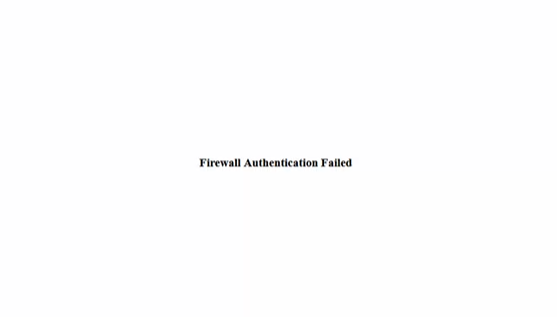
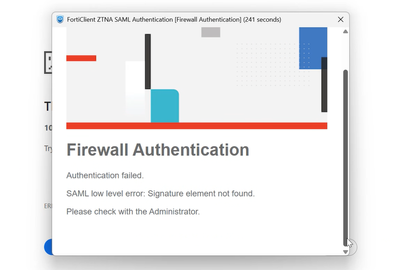
Forticlient users, will get Firewall Authentication Failed


It wasn’t a lost configuration or a certificate mismatch. It turned out to be a change in
how SAML assertions are validated in the newest FortiGate versions when
Microsoft Entra ID is the Identity Provider (IdP).

The Root Cause
The latest FortiGate firmware expects the IdP to sign both the SAML response and the SAML assertion.
If your Entra ID configuration only signs the response (which used to be sufficient), authentication will fail
after the upgrade.

The Fix (Microsoft Entra ID setting)

  • Open the Microsoft Entra admin center and go to your Enterprise application for FortiGate.
  • Navigate to Single sign-on → SAML Certificates → SAML Signing Certificate → Edit.
  • Under Signing option, select: Sign SAML response and assertion.
  • Save the change and test authentication again.
  • Once this option was enabled, users were able to authenticate successfully again.

    Why This Matters
    Requiring signatures on both the response and the assertion strengthens the integrity of the SAML flow:
    FortiGate can verify not only the envelope (response) but also the identity claims (assertion).
    This improves security, but it may catch existing deployments by surprise after an upgrade.

    Takeaway

    • If SAML breaks after a FortiGate firmware upgrade with Entra ID as IdP, don’t assume your configuration is lost.
    • Enable “Sign SAML response and assertion” in Microsoft Entra ID for the affected application.
    • Re-test sign-in—authentication should start working immediately.

    Reference
    Fortinet community article on post-upgrade SAML issues:
    Troubleshooting Tip – SAML Authentication fails after firmware upgrade

    Tip: If you manage multiple FortiGate clusters, note this requirement in your upgrade checklist to avoid surprise outages.